

Description
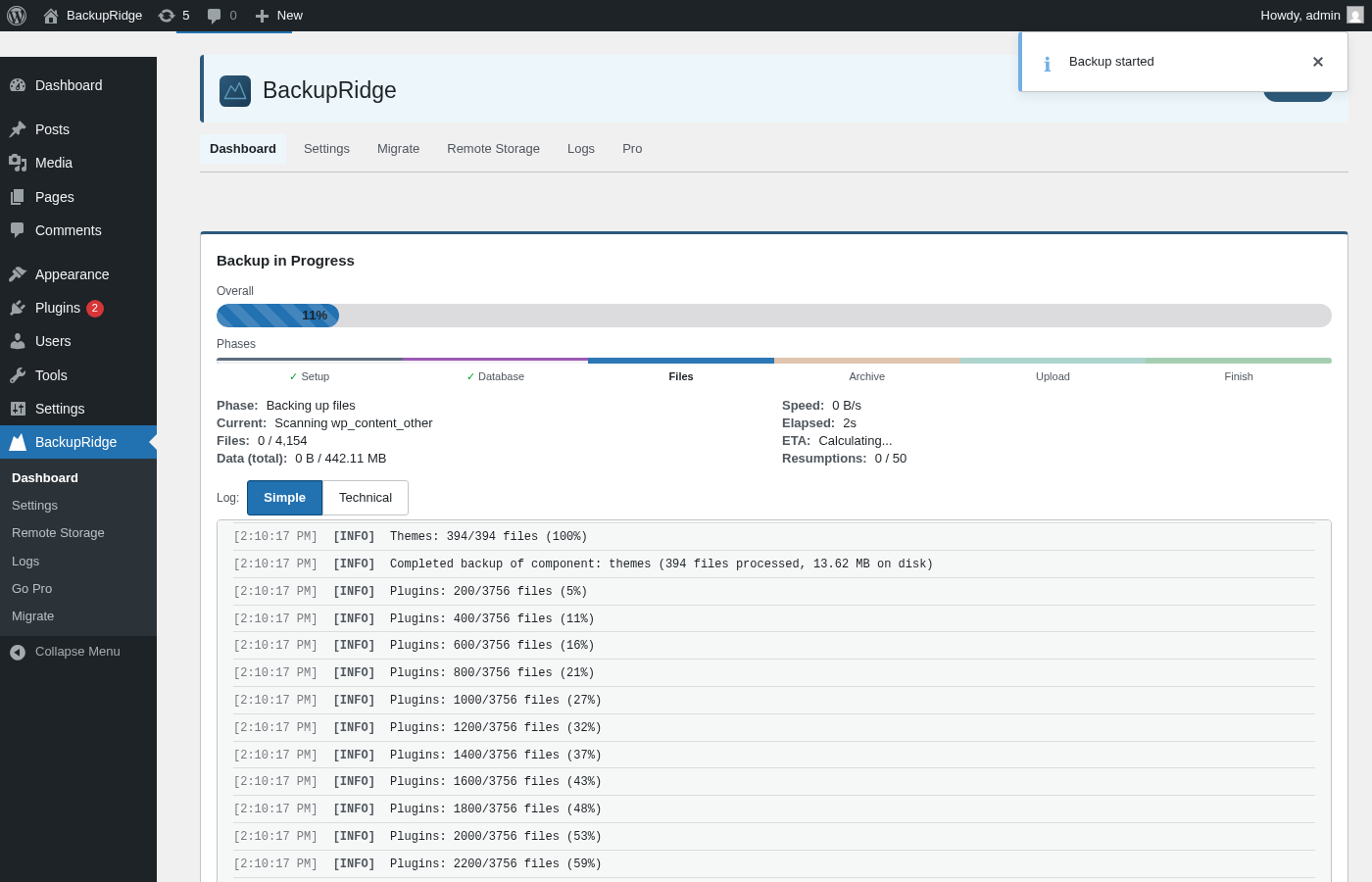
BackupRidge is the WordPress backup plugin engineered to finish — even on cheap shared hosting. Most backup plugins assume a fast server, then quietly die when a 30-second PHP limit or a missed WP-Cron event cuts them off. BackupRidge saves a checkpoint at every step and resumes across requests, a watchdog revives stalled jobs, and pacing adapts to your host’s measured speed — so a full-site backup completes on hosting where other plugins give up.
Back up your database and files on a schedule, send the archives off-site, restore the whole site or only the pieces you need, and migrate a site to a new domain or host — from a dashboard that reports what actually happened, per destination, with real logs.
Back up to storage you control
Every backup can upload to one or more destinations:
- Amazon S3 backup — including any S3-compatible service
- Cloudflare R2 backup
- FTP backup and SFTP backup to your own server
- Local backup on the web server, protected from direct web access
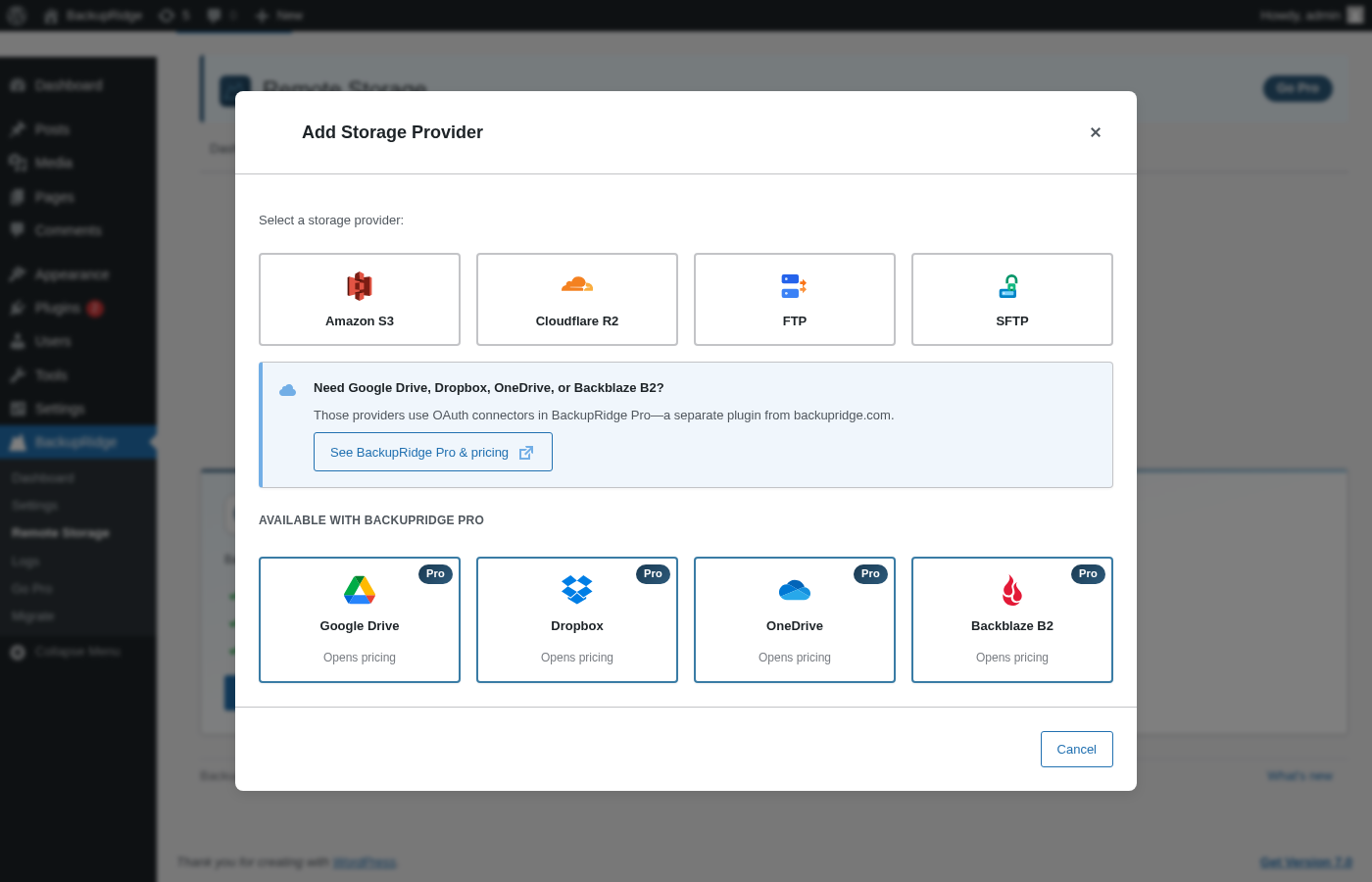
- Google Drive backup, Dropbox backup, OneDrive backup, and Backblaze B2 backup with BackupRidge Pro
Your archives live in accounts you own. There is no vendor cloud in the middle, and nothing about restore depends on our servers.
Built for hosts that kill long requests
- Resumable everything — database export, file archiving, and uploads all checkpoint and continue across requests, so strict execution limits pause a backup instead of killing it.
- Backup watchdog — a cron-based watchdog detects stalled jobs (missed cron, loopback failures, hard process kills) and resumes them automatically.
- Host-aware tuning — the plugin measures your server’s real disk and upload throughput and sizes its work slices, archive parts, and pacing to match.
- Backup intensity control — pace backup I/O so a running backup doesn’t slow down your live visitors.
- Split archives — large sites are split into right-sized numbered parts that upload reliably and download individually.
Honest by design
- Restore is not a paywall. Restore, including component selection and migration receive, ships in this plugin at no cost — and archives are self-describing, so they restore on a brand-new install too.
- Per-destination truth. If a backup reaches two destinations and fails a third, the job says exactly that — no false green checkmarks.
- Real logs. Every job writes a readable log you can view and download, plus a one-click diagnostics bundle for support.
Free Features
- Resumable backups — Long-running backups save progress and resume from the last checkpoint so they finish on any host, including shared hosting with 30-second limits.
- Database backup — MySQL/MariaDB export via mysqldump (when available) or native PHP streaming with optional table filtering and row-level resumption.
- File backup — Back up wp-content (and optionally the full WordPress root) with exclusion patterns, compression, and optional archive splitting for large sites.
- Local storage — Store completed backups on the server filesystem. Optional subfolder under uploads (base:
wp-content/uploads/backupridge). - Remote storage — Add multiple destinations and upload completed backups to Amazon S3, Cloudflare R2, FTP, or SFTP.
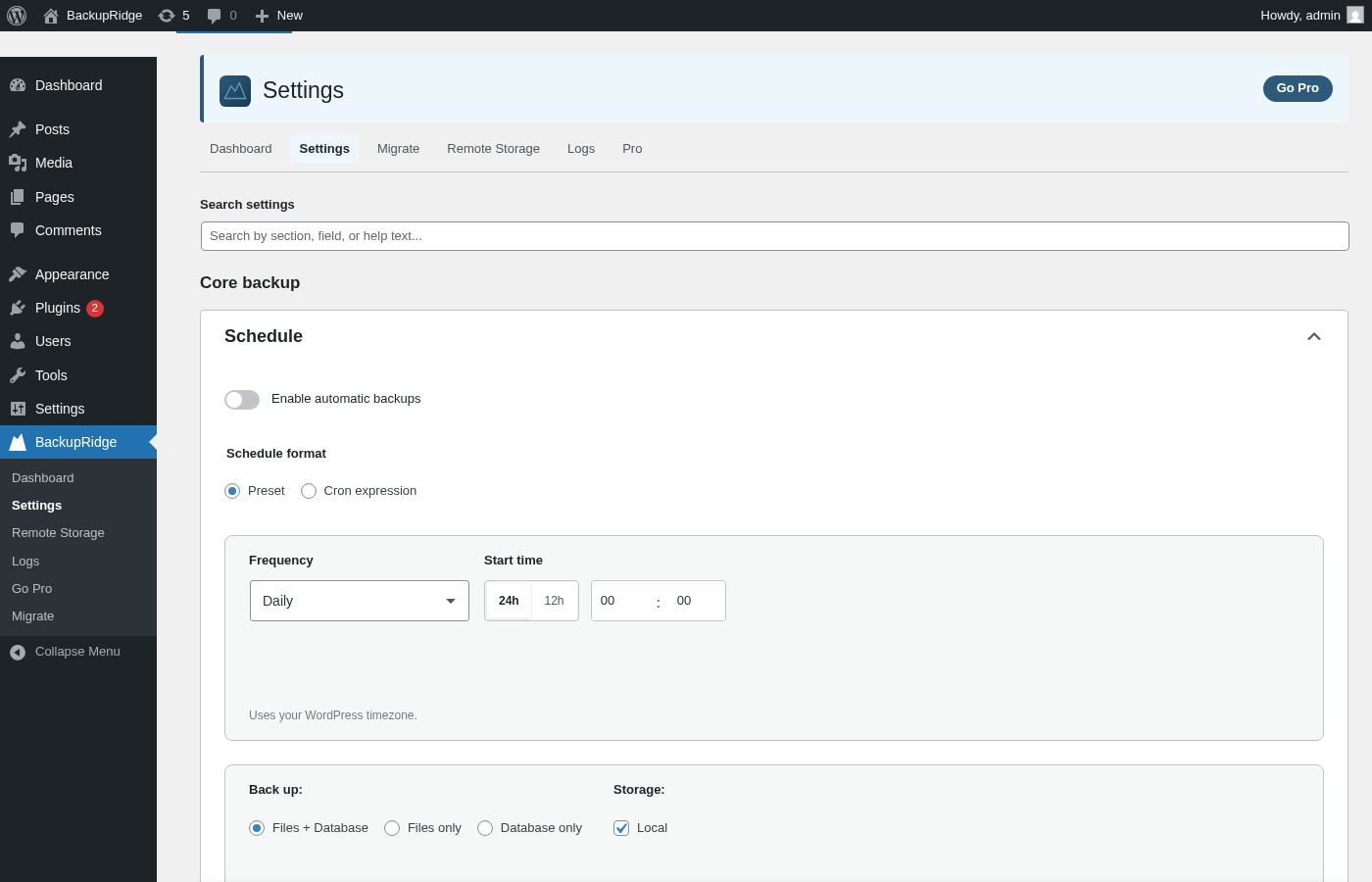
- Scheduled backups — Run backups automatically on a daily, weekly, or custom schedule via WP-Cron, with a REST endpoint available for triggering from an external system cron.
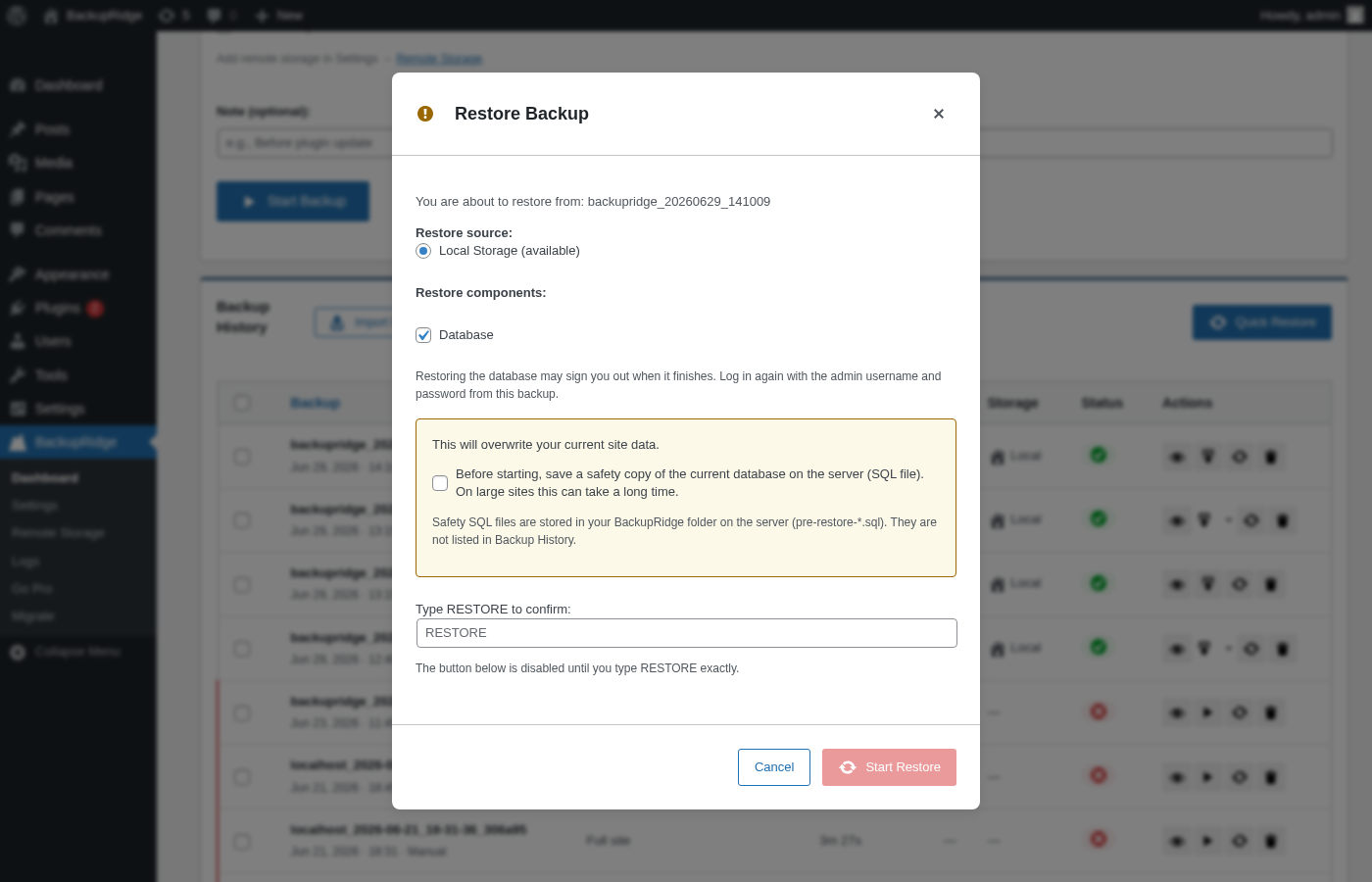
- Restore — Restore from a local backup, remote storage, or an uploaded archive, with component-level selection (database, themes, plugins, uploads, core) so you only restore what you need.
- Site migration (receive) — Bring another WordPress site into this one: upload its backup archive via Import Backup on the Dashboard (split/multi-part archives supported) and restore it — old domain URLs are replaced with this site’s URL automatically. The Migrate admin page handles live site-to-site transfer (receiving a push sent from BackupRidge Pro, plus history).
- WP-CLI discover/import —
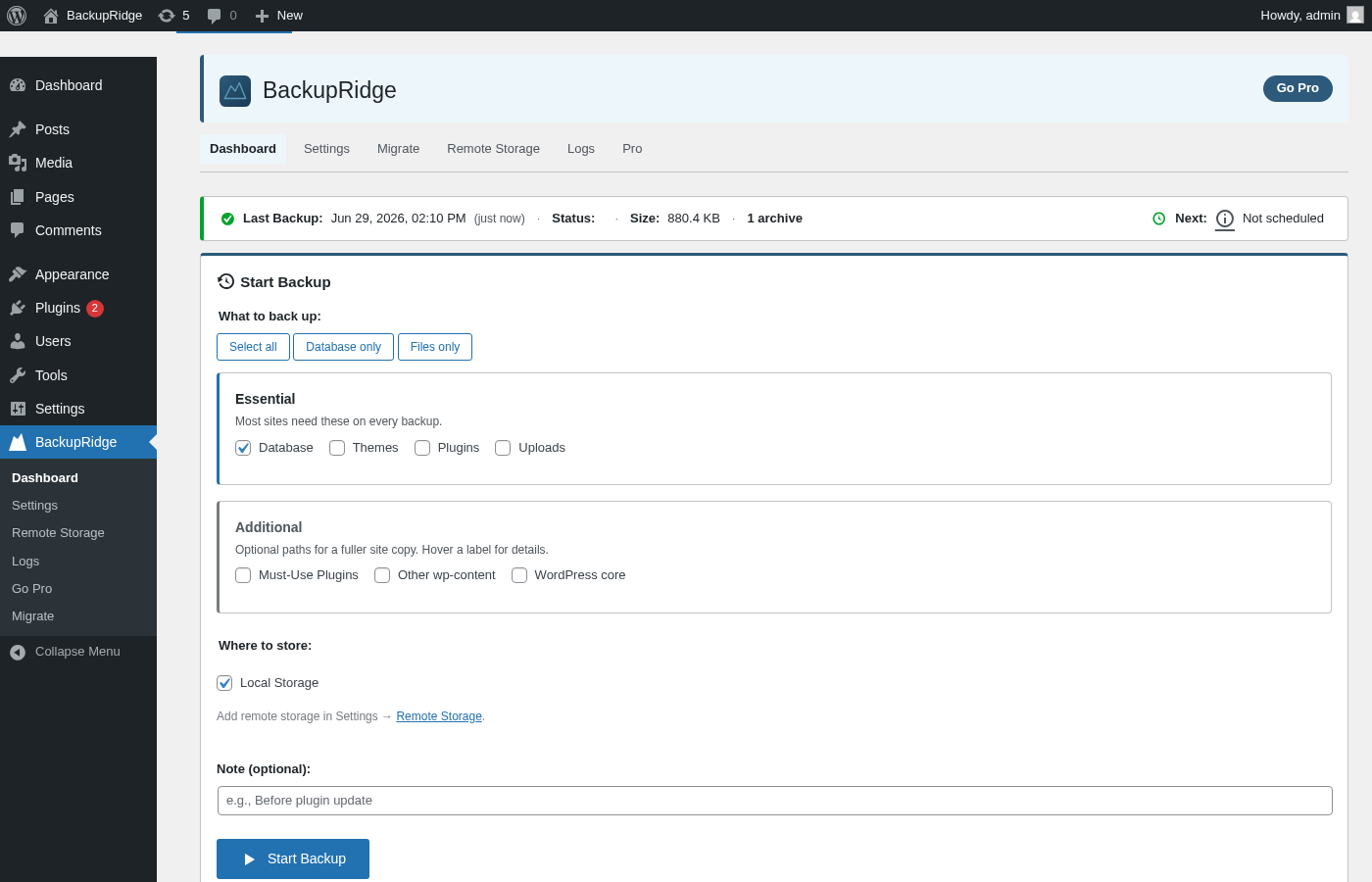
wp backupridge discoverscans for archives already placed underwp-content/uploads/backupridge/backups/(e.g. copied over viascp) and registers them in Backup History;wp backupridge import <path>does the same for a single archive file anywhere on disk. Both are the scriptable equivalent of the Dashboard’s “Discover local backups” / “Import Backup” buttons — useful for disaster-recovery runbooks that rebuild a site entirely from the command line. - Dashboard — View backup status, history, progress, and logs. Start, stop, continue, or retry backups from the admin UI.
- Backup watchdog — A cron-based watchdog recovers backups that stall due to missed cron events or loopback failures.
- Custom backup filenames — Choose a filename prefix (BackupRidge, site URL, or site name) with automatic date/time stamping.
- Multi-part downloads — Download each archive part from the dashboard, or use Download All to queue sequential direct downloads (reliable on shared hosting).
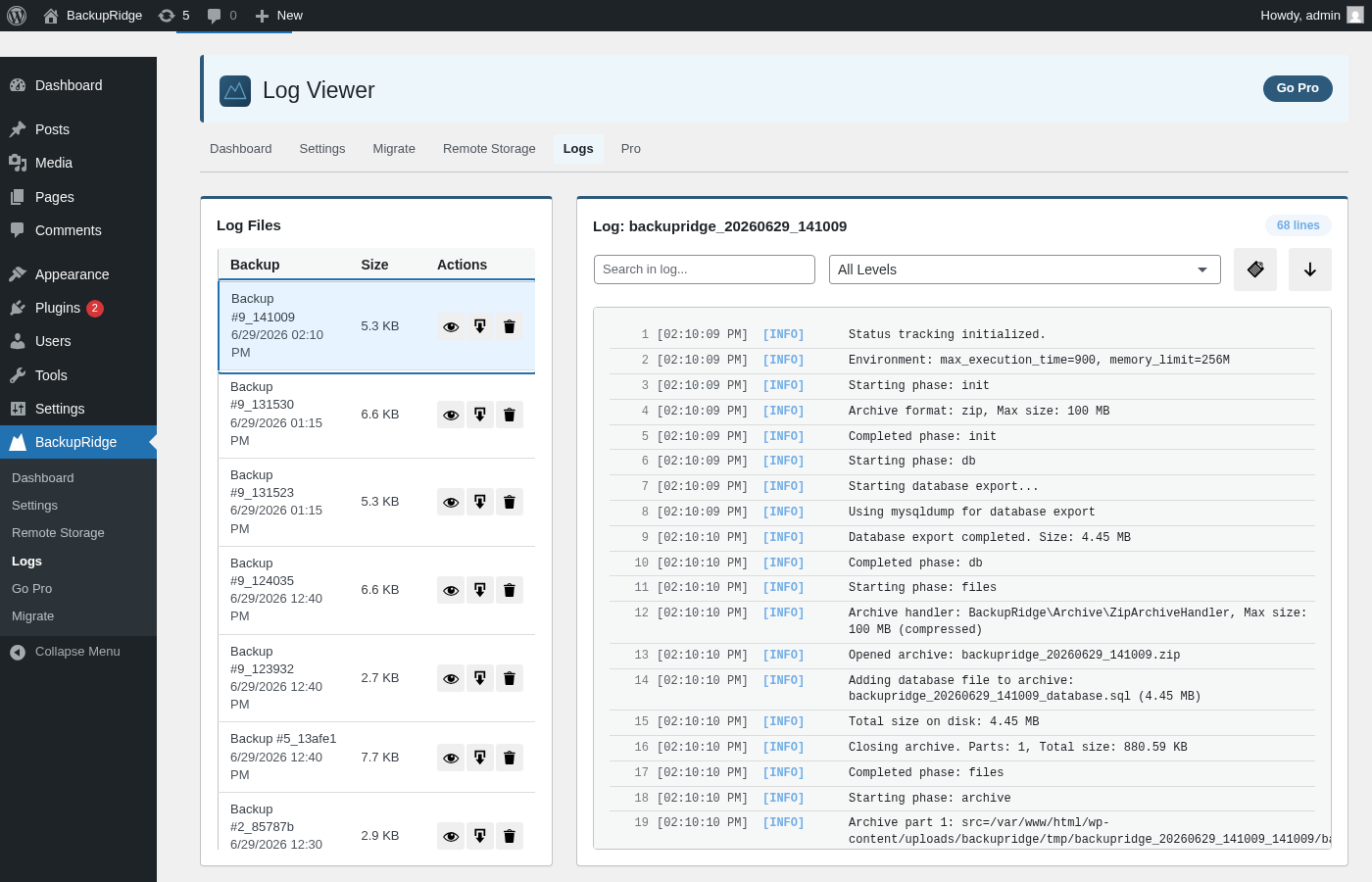
- Log viewer — Browse and download per-job log files directly from the admin UI.
- Webhook notifications — Optional HTTP POST after a successful and/or failed backup (you choose): generic JSON, Slack incoming webhook, or Discord webhook format; URL, format, and which outcomes to notify are in Settings.
- Update-screen warning — See a notice on WordPress update screens when no backup has been created in the last 24 hours.
Pro Features
- More cloud providers + OAuth — Connect Google Drive, Dropbox, OneDrive, and Backblaze B2 with easy OAuth sign-in—no manual API keys required.
- Incremental backups — Only back up files that changed since the last run, reducing time and storage.
- Archive encryption — AES-256-GCM authenticated encryption for backup archives before upload (legacy AES-256-CBC archives are still decryptable for restore). The encryption key can be downloaded from Settings Encryption and imported on another site — save a copy before you need it, since the key lives only on this site and encrypted backups cannot be recovered without it.
- Advanced scheduling — Multiple independent schedules with time-of-day, day-of-week, 5-field cron expression support, and per-schedule settings overrides.
- Backup verification — SHA-256 integrity checks on every archive part after backup completes.
- System cron integration — Managed system cron setup and WP-CLI commands for triggering and automating backups, instead of relying on WP-Cron.
- Custom filename templates — Build filenames from placeholders (
{type},{seq}, and more) instead of a fixed prefix.
Requirements
PHP 8.0 or higher, WordPress 6.7 or higher. The backup directory (default wp-content/uploads/backupridge) must be writable by the web server.
Support
Without a license: please open a thread in BackupRidge’s support forum — the Support tab on this plugin’s directory page. We read every thread.
Pro license holders get a priority support channel: use the Support link in the plugin footer (Dashboard, Settings, Log Viewer, etc.) or go directly to backupridge.com/contact. When your license is active, the in-plugin link automatically carries your license key and plan so your ticket is prioritised at intake.
Whichever channel you use, attaching diagnostics up front avoids back-and-forth over “what PHP version / what host / is cron working?”:
- Log Viewer (BackupRidge Logs) — copy or download the log for a specific backup job as plain text.
- Support Bundle (also in the Log Viewer) — a one-click report combining your host environment, host capabilities, WP-Cron status, and a redacted summary of your settings. Copy it to your clipboard or download it as a
.txtfile and attach it to your ticket.
External services
BackupRidge can upload backup archives to third-party cloud storage services configured by the user. No data is sent to any external service unless the user explicitly configures a storage provider.
Links to backupridge.com and stavatech.no are informational website links and do not receive backup data from the plugin.
Amazon S3
Used to store backup archives via the S3 API. Signed requests with user-provided credentials and backup files are transmitted when the user configures S3 storage.
* AWS Customer Agreement
* AWS Privacy Notice
Cloudflare R2
Used to store backup archives via S3-compatible API calls. Signed requests with user-provided credentials and backup files are transmitted when the user configures R2 storage.
* Cloudflare Terms
* Cloudflare Privacy Policy
FTP
Used to upload backup archives to a host, port, and credentials supplied by the site administrator. Data is transmitted only when the user configures FTP storage.
This connection targets a user-selected server endpoint (self-hosted or third-party chosen by the site owner), so no single provider Terms or Privacy policy applies.
SFTP
Used to upload backup archives over SSH file transfer to a host, port, and credentials (or key) supplied by the site administrator. Data is transmitted only when the user configures SFTP storage.
This connection targets a user-selected server endpoint (self-hosted or third-party chosen by the site owner), so no single provider Terms or Privacy policy applies.
Google Drive (BackupRidge Pro only)
Not included in the WordPress.org download. When installed separately, BackupRidge Pro can upload backups via the Google Drive API using OAuth and user-granted access. Backup file data and metadata needed for the upload are sent to Google when the user configures this provider and runs a backup. Setup requires enabling the Google Drive API on your Google Cloud project (not only OAuth credentials). See https://backupridge.com/docs/cloud-storage#google-drive
Dropbox (BackupRidge Pro only)
Not included in the WordPress.org download. When installed separately, BackupRidge Pro can upload backups via the Dropbox API using OAuth. Backup file data is sent to Dropbox when the user configures this provider and runs a backup. Setup requires enabling file permissions on your Dropbox app and clicking Submit in the Permissions tab before OAuth. See https://backupridge.com/docs/cloud-storage#dropbox
Microsoft OneDrive (BackupRidge Pro only)
Not included in the WordPress.org download. When installed separately, BackupRidge Pro can upload backups via Microsoft Graph / OneDrive using OAuth. Backup file data is sent to Microsoft when the user configures this provider and runs a backup. Setup requires an Azure app registration with a redirect URI of wp-admin/admin.php (no query string) and account types matching your Microsoft sign-in. See https://backupridge.com/docs/cloud-storage#onedrive
Backblaze B2 (BackupRidge Pro only)
Not included in the WordPress.org download. When installed separately, BackupRidge Pro can upload backups to Backblaze B2 via the Backblaze B2 Native API. It calls https://api.backblazeb2.com to authorize the session with the user-provided Key ID and Application Key, then uploads the backup archive parts. Backup file data is sent to Backblaze only when the user configures this provider and runs a backup.
HTTP webhooks (backup status)
When webhooks are enabled in Settings, the plugin can send an HTTP POST to the URL you provide after a backup succeeds and/or after it fails, depending on the checkboxes you set. Choices: generic JSON (job id, status, size, duration, timestamp), Slack incoming webhook (JSON with a text field), or Discord webhook (JSON with a content field). Data is sent only to your URL; the receiving service’s terms apply if you use Slack or Discord.
REST / cron trigger (this plugin)
Optional: a REST URL with a secret key can be called by system cron so the site can run backup segments without WP-Cron or loopback. Requests go only to the same WordPress site; no third party receives data unless the site owner configures something else.
Preferred authentication: send the key in the X-BackupRidge-Cron-Key request header. Legacy ?key= query authentication remains supported for compatibility, but query strings can be logged by proxies and web servers.
Source Code
This plugin ships its full, human-readable source. Every minified script in assets/js/dist/ has its un-minified source in assets/js/src/, and the minified stylesheet assets/css/admin.min.css has its source in assets/css/admin.css, inside the same plugin package, so each compiled file can be reviewed and rebuilt. No source is removed during packaging.
Build tools and steps to regenerate the compiled assets:
- Requirements: Node.js 18+ and npm.
- Install dependencies:
npm install - Build JS and CSS (terser minifies each
assets/js/src/*.jsintoassets/js/dist/, and PostCSS/cssnano minifiesassets/css/admin.cssintoassets/css/admin.min.css):npm run build
PHP dependencies are managed with Composer (composer install). No third-party JavaScript libraries are bundled in a minified-only form; all shipped scripts are first-party and their sources are included as described above.
Screenshots
Installation
- Upload the plugin zip via Plugins Add New Upload, or install it from the WordPress plugin directory.
- Activate the plugin through the Plugins screen.
- Go to BackupRidge in the admin menu to configure settings, storage, and schedules.
- Use the Dashboard to start a manual backup or view history and logs.
For first-time setup, ensure the backup directory (Settings Backup directory) is writable. The plugin creates wp-content/uploads/backupridge by default for backups, logs, and temporary files.
FAQ
-
My host has a 30-second PHP limit. Will backups actually complete?
-
Yes — this is the problem BackupRidge was built around. A backup runs as a series of short slices: each slice saves a checkpoint before the host’s time limit hits, then a WP-Cron event (or a loopback self-call, or even the dashboard status poll) continues from that checkpoint. A watchdog catches jobs that stall because cron never fired. Large sites on slow shared hosting take longer, but they finish.
-
Does restoring cost anything, or is it locked behind a license?
-
Restore ships in this plugin at no cost, with no nags in the middle of it: full-site restore, component selection (database, themes, plugins, uploads, core), restore from remote storage, and restore of uploaded archives are all included. Each archive embeds a self-describing manifest, so it can be restored on a fresh WordPress install — you are never locked out of your own backups.
-
Where are backups stored?
-
By default, backups are stored in
wp-content/uploads/backupridge/backups. In Settings, you can optionally set a subfolder underwp-content/uploads/backupridge/(for examplestaging/site-a), but absolute custom paths are not allowed. You can also configure remote storage — Amazon S3, Cloudflare R2, FTP, SFTP, and more with BackupRidge Pro — to upload completed backups off-site. Archives always land in storage accounts you own. -
Can I back up to Google Drive, Dropbox, or OneDrive?
-
Yes, with BackupRidge Pro, which adds Google Drive backup, Dropbox backup, OneDrive backup, and Backblaze B2 backup with OAuth sign-in. The base plugin includes Amazon S3, Cloudflare R2 (and any S3-compatible service), FTP, SFTP, and local storage.
-
Can I resume a backup if it stops?
-
Yes. BackupRidge saves progress at regular checkpoints and can resume from the last one. If a backup stalls, click “Continue” on the Dashboard to pick up where it left off. A built-in watchdog also detects stalled backups and re-schedules them automatically.
-
Will a backup slow down my site while it runs?
-
You can decide. The backup intensity setting (Unrestricted / Light / Moderate / Aggressive) paces file and upload batches so a running backup yields disk and CPU to live visitors. Auto-detect measures your host’s disk throughput and recommends a preset; slower hosts get gentler pacing automatically.
-
What happens if WP-Cron is unreliable on my host?
-
BackupRidge has several fallback mechanisms: a loopback self-call, a cron trigger REST endpoint for system cron, and the ability to run a backup segment during the dashboard status poll. Even on hosts where WP-Cron is disabled or unreliable, backups can make progress whenever someone visits the admin.
-
How large a site can BackupRidge handle?
-
There is no built-in size limit. Large sites are split into numbered archive parts sized to what your host and storage destination can reliably handle, and every phase — database export, archiving, upload — is resumable, so total runtime is not bounded by any single request. Multi-gigabyte sites complete on slow shared hosts; the work is spread across as many slices as the host needs.
-
Can I restore specific parts of a backup?
-
Yes. The restore dialog lets you choose which components to restore: database, themes, plugins, uploads, and/or core files. You can optionally save a safety copy of the current database on the server before starting (recommended for large sites only if you accept the extra time).
-
Can I migrate a site to this one?
-
Yes, at no cost. Upload the backup archive exported from the other site via Import Backup on the Dashboard, then restore it — split (multi-part) archives are supported, and old domain URLs are replaced with this site’s URL automatically during restore. The Migrate admin page is for live site-to-site transfer: it can receive a push from another BackupRidge install, and BackupRidge Pro adds pushing a migration directly to another site (including staging clones).
-
How do I restore to a new server after the old one is gone?
-
Install WordPress and BackupRidge on the new host, then get the backup archive onto it: upload it via Import Backup on the Dashboard, drop the files into
wp-content/uploads/backupridge/backups/over FTP/SFTP and use Discover local backups, or — if the old site uploaded to remote storage — configure that same destination under Storage and use Find backups in this storage to locate and download it. Restore it from Backup History like any other backup; domain URLs are replaced automatically if you’re moving to a new domain. A full step-by-step walkthrough ships with the plugin indocs/RESTORE_TO_NEW_SITE.md. -
I’m switching from BackWPup — what do I need to know?
-
Scheduled backups, restore, and uploading each backup to several destinations at once are all included in the free version. S3, R2, FTP, SFTP, and local storage need no upgrade; Google Drive, Dropbox, and OneDrive require Pro — the same split BackWPup applies in its paid plans. Keep the backup archives made by your old plugin until BackupRidge has completed a few scheduled runs and you have verified a restore. Releases are incremental and changelog-driven: every version ships with a full changelog entry (see below), and settings are migrated automatically on update.
-
I’m switching from All-in-One WP Migration — is there a size limit?
-
No. BackupRidge has no size caps on backups, imports, or restores in any version. Large sites are handled by splitting archives into numbered parts and resuming from checkpoints, not by limiting how much data you can move. Backups are standard ZIP archives that any unzip tool can open — there is no proprietary format. Existing
.wpressarchives can’t be imported, though: start with a fresh BackupRidge backup of your site instead. -
How does archive splitting work?
-
When a backup exceeds the configured maximum archive size, BackupRidge splits it into multiple numbered parts (e.g.
backup_001.zip,backup_002.zip). All parts are uploaded to remote storage and can be downloaded individually or all at once via Download All (sequential direct downloads). -
Import Backup is slow or fails with larger upload chunks. What should I change?
-
Import Backup uploads use chunked
admin-ajaxrequests. Larger chunks reduce request overhead and are often faster, but each chunk must fit PHP limits.BackupRidge automatically detects and applies a safe max chunk size from:
upload_max_filesizepost_max_size(minus multipart form overhead)
If uploads fail above a certain chunk size (for example above 8 MB), increase PHP limits so they are above your target:
upload_max_filesize = 16Mpost_max_size = 24M
Then set Settings Upload Upload chunk size to a value below those limits (8 MB in this example). Keep
post_max_sizehigher thanupload_max_filesize. -
What is the difference between this plugin and BackupRidge Pro?
-
This plugin is complete backup software, not a demo: resumable full-site backups, scheduling, S3/R2/FTP/SFTP/local storage, full restore, and migration receive are all included, with no artificial limits. BackupRidge Pro adds the OAuth cloud providers (Google Drive, Dropbox, OneDrive, Backblaze B2), incremental backups, archive encryption, backup verification, advanced scheduling, system cron + WP-CLI integration, custom filename templates, and push migration/staging.
-
What happens to my backups if BackupRidge disappears?
-
You keep everything. Backup archives are standard ZIP files containing your files and a plain SQL export, stored in your own hosting account and your own storage accounts — there is no BackupRidge cloud. Restore runs entirely on your server and never calls our infrastructure. The plugin is GPL-licensed, so the software itself remains yours to run.
-
What WordPress and PHP versions are supported?
-
WordPress 6.7 or higher and PHP 8.0 or higher. The plugin is tested on WordPress 6.8, 6.9, and 7.0 with PHP 8.0 through 8.3.
-
Is the backup directory protected from web access?
-
Yes. BackupRidge creates an
.htaccessfile and anindex.phpfile in the backup directory to prevent direct web access on Apache and most hosting environments. For Nginx, add alocationblock to deny access to the backup directory. -
What happens to my data if I uninstall the plugin?
-
Deleting BackupRidge from Plugins Installed Plugins removes its settings, scheduled cron events, and its backup storage directory (
wp-content/uploads/backupridge), including any backup archives stored there. If you want to keep your backups, move or download them to another location, or switch to a remote storage destination, before deleting the plugin. Simply deactivating the plugin (without deleting it) leaves all settings and stored backups untouched.
Reviews
There are no reviews for this plugin.
Contributors & Developers
“BackupRidge” is open source software. The following people have contributed to this plugin.
Contributors
Translate “BackupRidge” into your language.
Interested in development?
Browse the code, check out the SVN repository, or subscribe to the development log by RSS.
Changelog
1.35.0
Confirm before uninstall deletes your data, plus dist-build and uninstall fixes.
- Feature: Deleting the plugin with “Remove data on uninstall” enabled now asks for confirmation before wiping local backups and settings, and lets you opt in to also deleting backups from any configured remote storage destinations.
- Fix: Uninstalling the plugin no longer wipes settings and local backups when “Remove data on uninstall” is left disabled.
- Fix: The free-build packaging step now includes the minified JS for the pre-update snapshot, Restore Points, and migration features, which were missing from the distributed build and could leave those admin screens broken.
1.34.3
Bugfix release.
- Fix: WordPress admin pages load normally again in the free version. Versions 1.34.0 through 1.34.2 registered an admin hook for a feature that is not part of the free build, which prevented wp-admin from loading while the plugin was active. The website frontend and scheduled backups were not affected.
1.34.2
Bugfix release.
- Fix: Database restores on MariaDB hosts now commit the final imported table reliably; previously the last table in the dump could fail to persist even though the restore reported success.
- Fix: Backup time-remaining estimates no longer turn far too pessimistic while files are still being scanned, the “throughput is decaying” advisory is no longer raised when a phase is nearly finished, and its suggested remedy now says when the upload part size is already at your host’s measured floor.
1.34.1
Bugfix release.
- Fix: The WordPress.org listing correctly shows “BackupRidge Pro” again (a packaging bug had rewritten it to “BackupRidge Advanced”).
- Fix: Pinning or unpinning a completed backup no longer corrupts its displayed Duration.
- Fix: The “leftover job temp” advisory no longer counts a running job’s own working files as debris from a failed job.
- Fix: The “throughput is decaying” health advisory no longer false-fires during the upload phase on a steady, bursty multipart transfer.
1.34.0
Pre-update snapshots with one-click rollback, cross-site adopt/restore, encryption key export, and a ZIP-only archive format.
- Feature: Pre-update snapshots — before a plugin, theme, or core update runs (including unattended WP-Cron auto-updates), the plugin takes an automatic snapshot; a new Restore Points widget lets you roll back to it in one click.
- Feature: (Premium) Export and back up the archive-encryption key on its own, so encrypted archives stay restorable even after a fresh WordPress install.
- Feature: New
wp backupridge discover/importWP-CLI commands register existing archive files already on disk as restorable jobs. - Feature: The adopt flow now recognizes and can restore backups authored by another site or domain — a rebuilt site, a host move, or a custom filename prefix.
- Feature: Onboarding wizard adds a dedicated “I’m restoring or moving an existing site” branch alongside the fresh-setup path.
- Changed: Backup archives are now ZIP-only; tar.gz support has been removed following its part-convergence and resumption issues.
- Changed: Restore and migration now correct the site URL immediately after the database import, before the full search-and-replace sweep runs.
- Changed: Imported and adopted jobs now persist their full backup manifest for accurate URL and table-prefix detection during restore.
- Fix: A backup that finished archiving could be incorrectly marked failed over entries that were re-archived but not actually a problem.
- Fix: Skipped-file counts are now reported correctly across a backup that resumes more than once.
- Fix: R2/S3 multipart upload completion failures now surface the storage provider’s actual error in the job log instead of a generic message.
- Fix: The onboarding wizard now reliably resumes instead of restarting.
For the complete version history, see the plugin’s SVN changelog.